








Key takeaways
- Your chip decides how many external displays macOS will drive natively.
- macOS does not support MST, so a single-cable dual HDMI hub usually mirrors on base chip Macs.
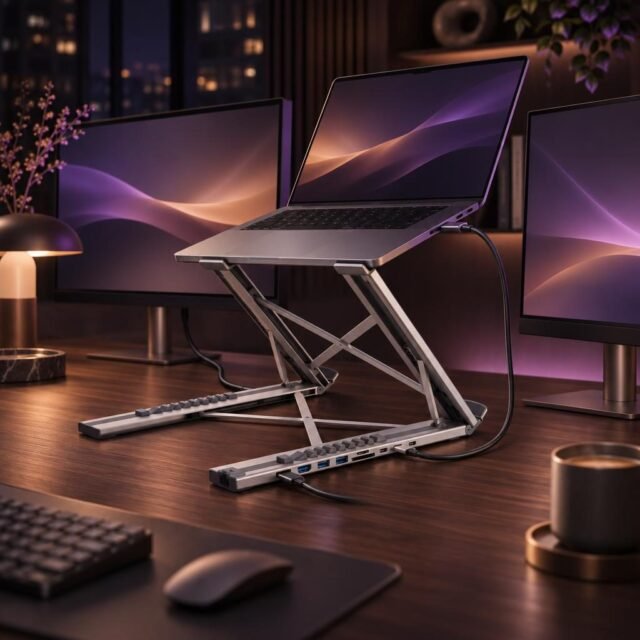
- For two independent screens, use two separate video connections or a Thunderbolt dock with two outputs on a supported Mac.
- DisplayLink docks add displays via software, with some trade-offs.
Quick answer: check how many external displays your MacBook’s chip supports. If it supports two, connect each monitor to its own video output, for example one through a Thunderbolt or USB-C port and one through HDMI, or use a Thunderbolt dock with two display outputs. Single-cable dual HDMI hubs usually mirror on Macs because macOS does not support MST.
1. Know your Mac’s limit
Base M1 and M2 MacBook Air and 13 inch MacBook Pro models support one external display natively. Newer base chips raised that limit, and M-series Pro and Max chips support two or more. Apple lists the exact number in each model’s tech specs on Apple Support.
2. Why “dual HDMI” hubs mirror
Many dual-output hubs rely on DisplayPort Multi-Stream Transport (MST) to split one video signal into two. Windows supports MST; macOS does not. On a Mac the two screens show the same picture.
3. Ways to get two independent displays
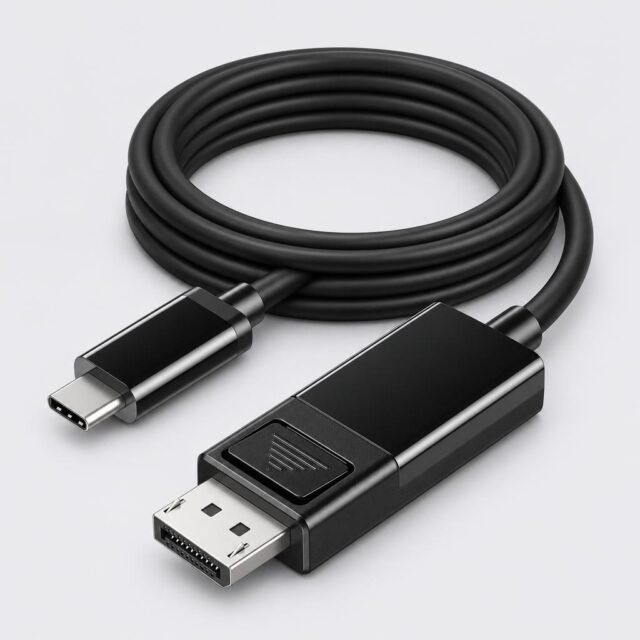
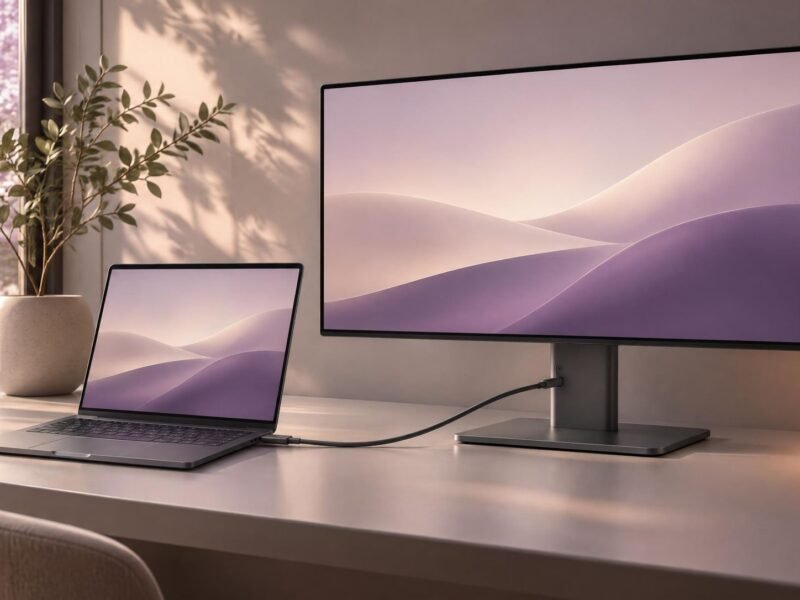
- Two direct connections: one monitor via USB-C to HDMI or DisplayPort cable, the second via another port or HDMI.
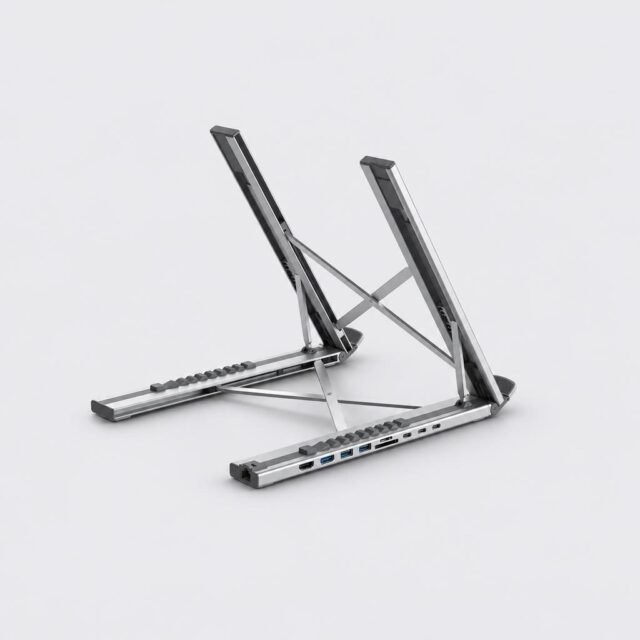
- Thunderbolt dock: on Macs that support two displays, many Thunderbolt docks expose two independent outputs.
- DisplayLink: docks with DisplayLink chips use a driver to add extra screens, which is useful on base chip Macs, though less suited to gaming or protected video.
4. Pick the right cables
For 4K at 60Hz, use a USB-C to HDMI 4K60 or USB-C to DisplayPort cable. For high refresh gaming monitors, DisplayPort is usually the better choice. See our DisplayPort vs HDMI guide.
Standards and sources
Frequently asked questions
Can a MacBook Air run two monitors?
It depends on the chip. Base M1 and M2 models support one external display natively. Check Apple's specs for your model, or use a DisplayLink dock.
Is HDMI or DisplayPort better for a Mac?
Both work. DisplayPort (via USB-C) often supports higher refresh rates; HDMI is convenient for TVs and many office monitors.
Why is my monitor stuck at 30Hz?
Usually the cable or adapter only supports HDMI 1.4. Use a 4K 60Hz rated cable or adapter.
Ask the Gaatly Concierge or message our team. We reply in minutes.