







Key takeaways
- A USB-C monitor with power delivery carries video, data and charging over one cable.
- Your laptop's USB-C port must support DisplayPort Alt Mode or Thunderbolt.
- Match the monitor's power output to your laptop: 65W for light laptops, 90W or more for larger ones.
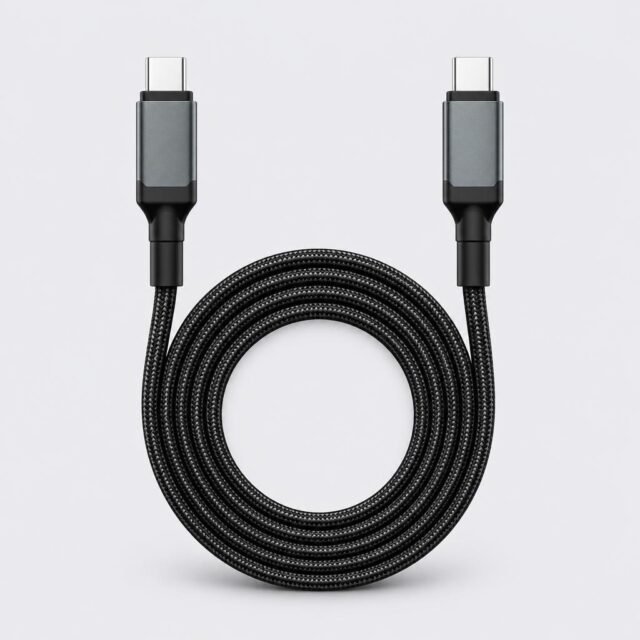
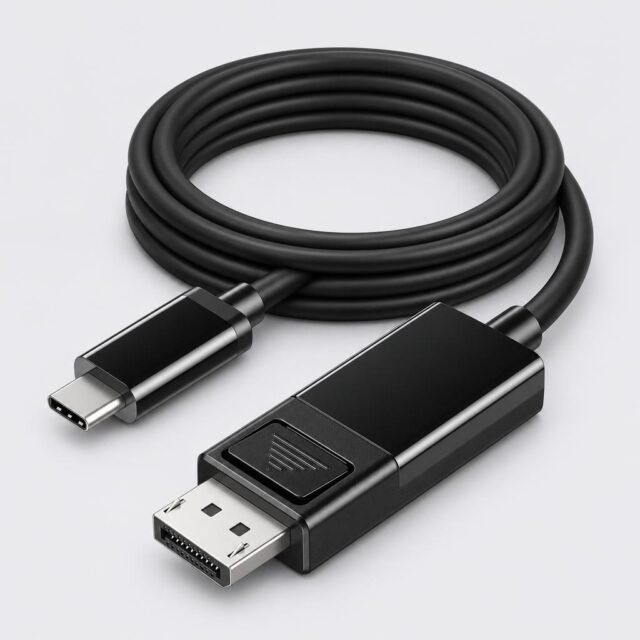
- Use a full-featured USB-C, USB4 or Thunderbolt cable, not a charging-only cable.
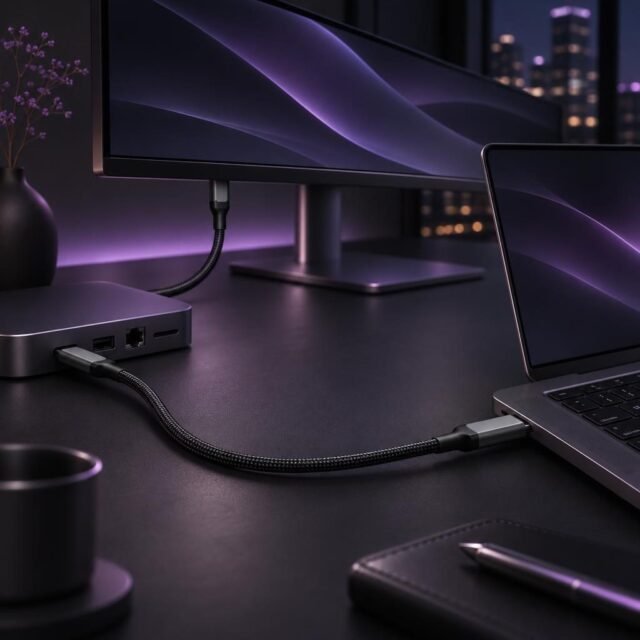
Quick answer: connect your laptop to a USB-C or Thunderbolt monitor that supplies enough power for your laptop, using a full-featured USB-C, USB4 or Thunderbolt cable. Plug keyboard, mouse receiver and storage into the monitor or a hub, and the entire desk connects with one cable.
How it works
USB-C can carry three things at once: video (through DisplayPort Alt Mode or Thunderbolt), data (USB), and power (USB Power Delivery). A monitor that supports all three becomes a docking station with a screen attached.
What you need
- A laptop port that outputs video. Thunderbolt and USB4 ports do. Many USB-C ports on Windows laptops do, marked with a DisplayPort or Thunderbolt symbol. Some budget laptops have charging-only ports.
- A monitor with USB-C power delivery that matches your laptop: 65W suits most light laptops, 90 to 100W suits larger ones.
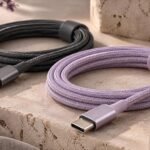
- The right cable. Charging-only cables carry no video. Use a USB4, Thunderbolt or full-featured USB-C cable rated for video, usually 1 metre or less for the highest bandwidth.
If your monitor has no USB-C
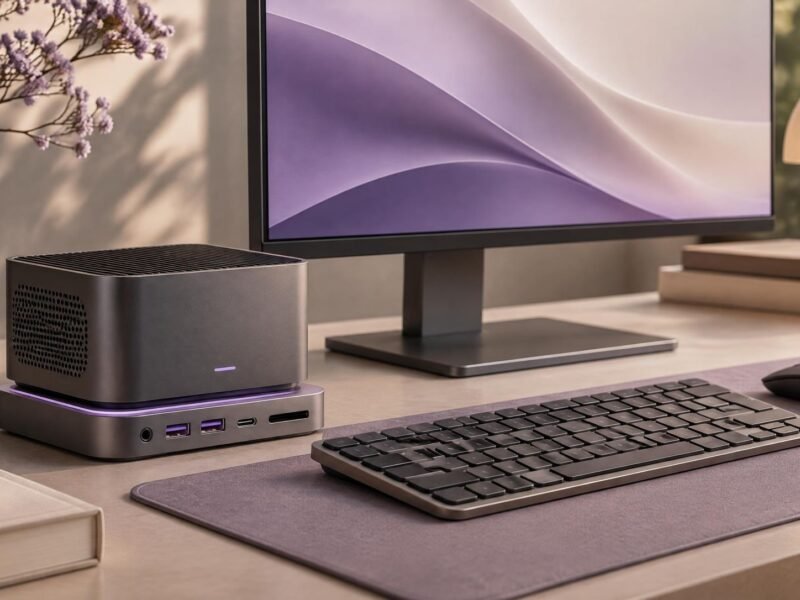
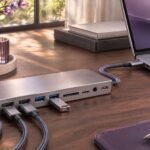
A USB-C hub or dock with HDMI or DisplayPort output gives the same result: one cable to the laptop, with the charger, monitor and accessories connected to the hub. Choose a hub with power pass-through and enough display bandwidth for your monitor’s resolution and refresh rate. Compare in hub vs dock.
MacBook notes
Apple silicon MacBook Air models support a limited number of external displays, which varies by chip and generation, while MacBook Pro models support more. If your second display mirrors instead of extending, read connecting two monitors to a MacBook.
Finishing the desk
- Mount the monitor on an arm to clear the desk.
- Route the single cable along the arm.
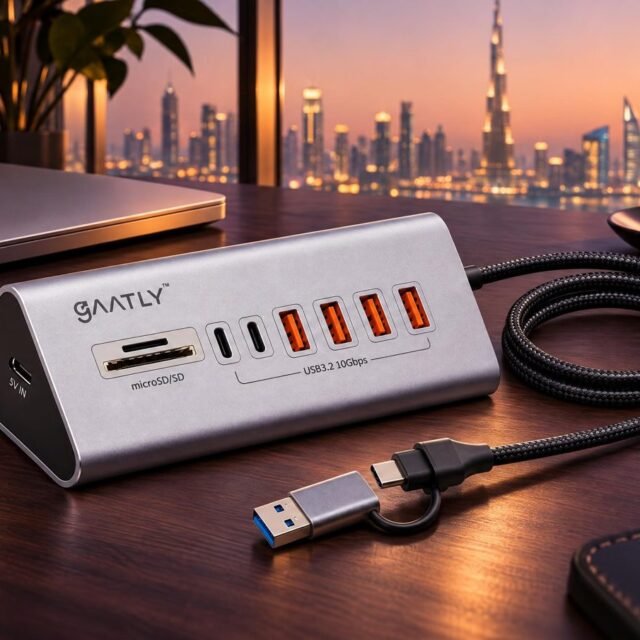
- Keep a 10Gbps hub at the front for drives and card readers.
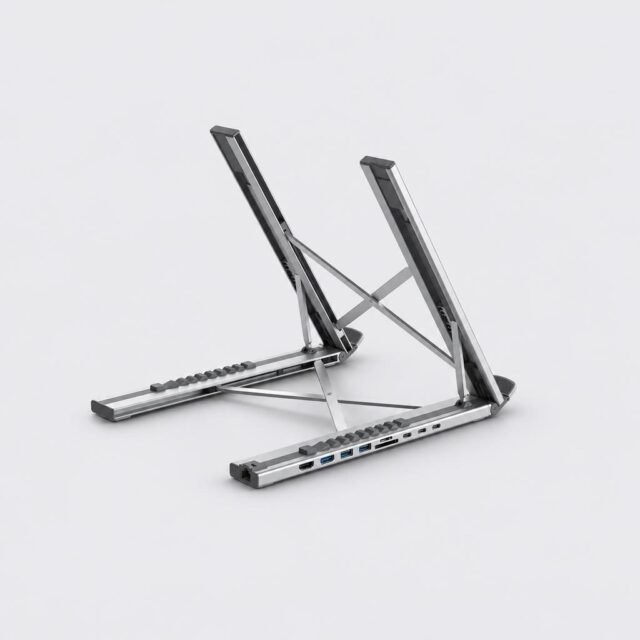
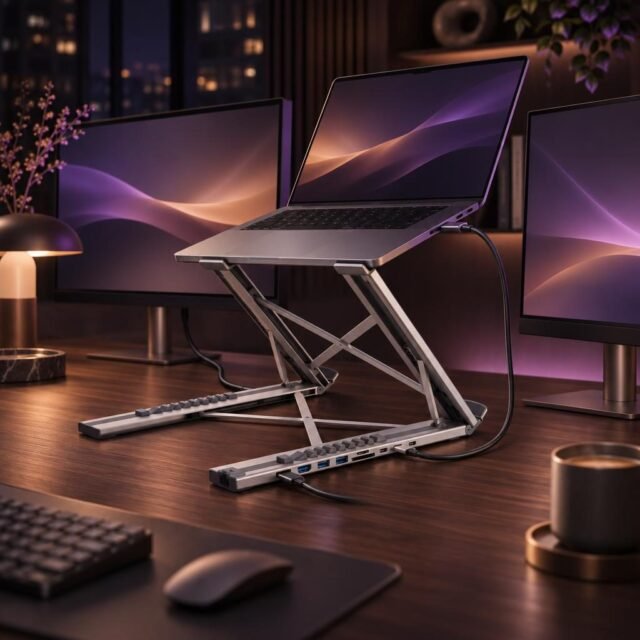
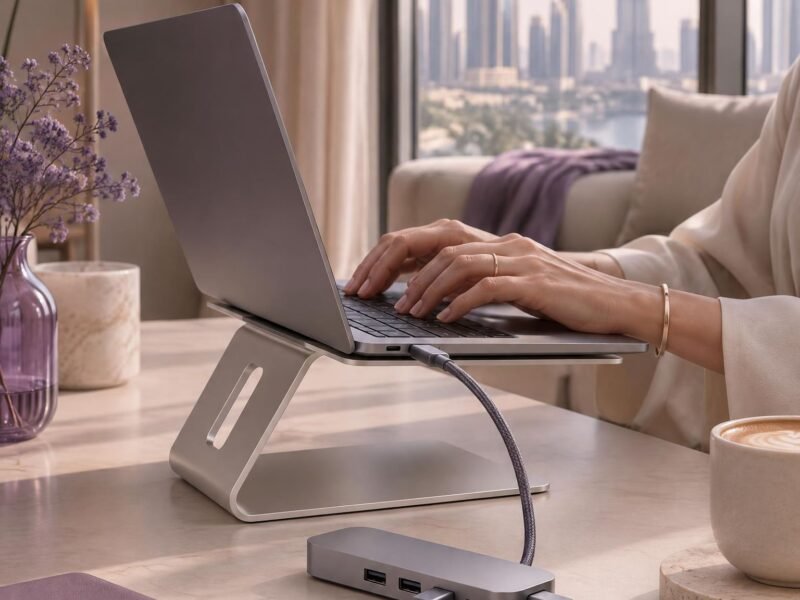
- Put the laptop on a stand beside the monitor, or close it and use it as a desktop.
Standards and sources
Frequently asked questions
Can any USB-C cable connect a monitor?
No. Many USB-C cables are charging-only and carry no video. Use a USB4, Thunderbolt or full-featured USB-C cable rated for video.
Will a USB-C monitor charge my laptop?
If it supports USB Power Delivery and supplies enough watts for your laptop. A 65W monitor may charge a large laptop slowly under load.
Is a dock better than a USB-C monitor?
A dock adds more ports and works with any monitor. A USB-C monitor is simpler and tidier. Both deliver the one-cable experience.
Ask the Gaatly Concierge or message our team. We reply in minutes.