







Key takeaways
- Windows supports DisplayPort MST, so one USB-C port can drive two extended displays.
- Total bandwidth is shared: two 4K screens may drop to 30Hz on older USB-C ports.
- Thunderbolt and USB4 docks give the most headroom for two high resolution displays.
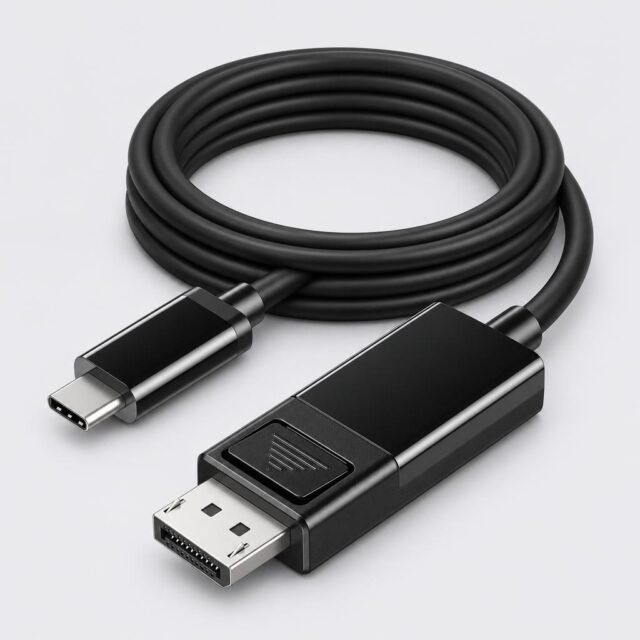
- Use one cable per monitor rated for its resolution and refresh rate.
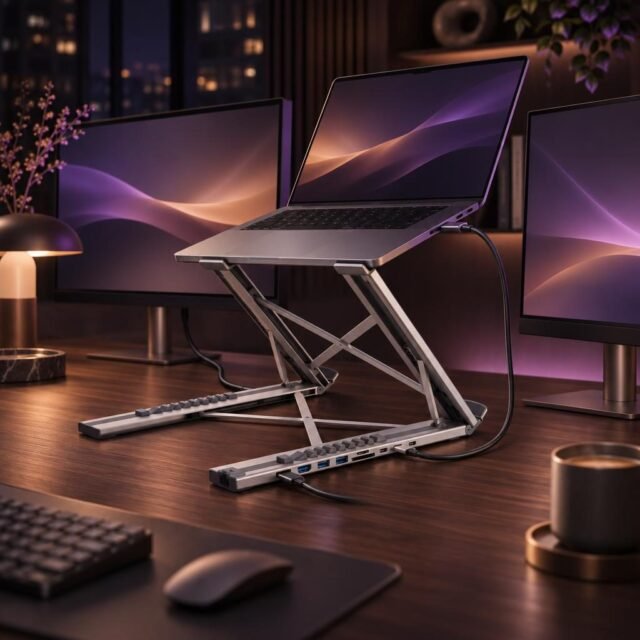
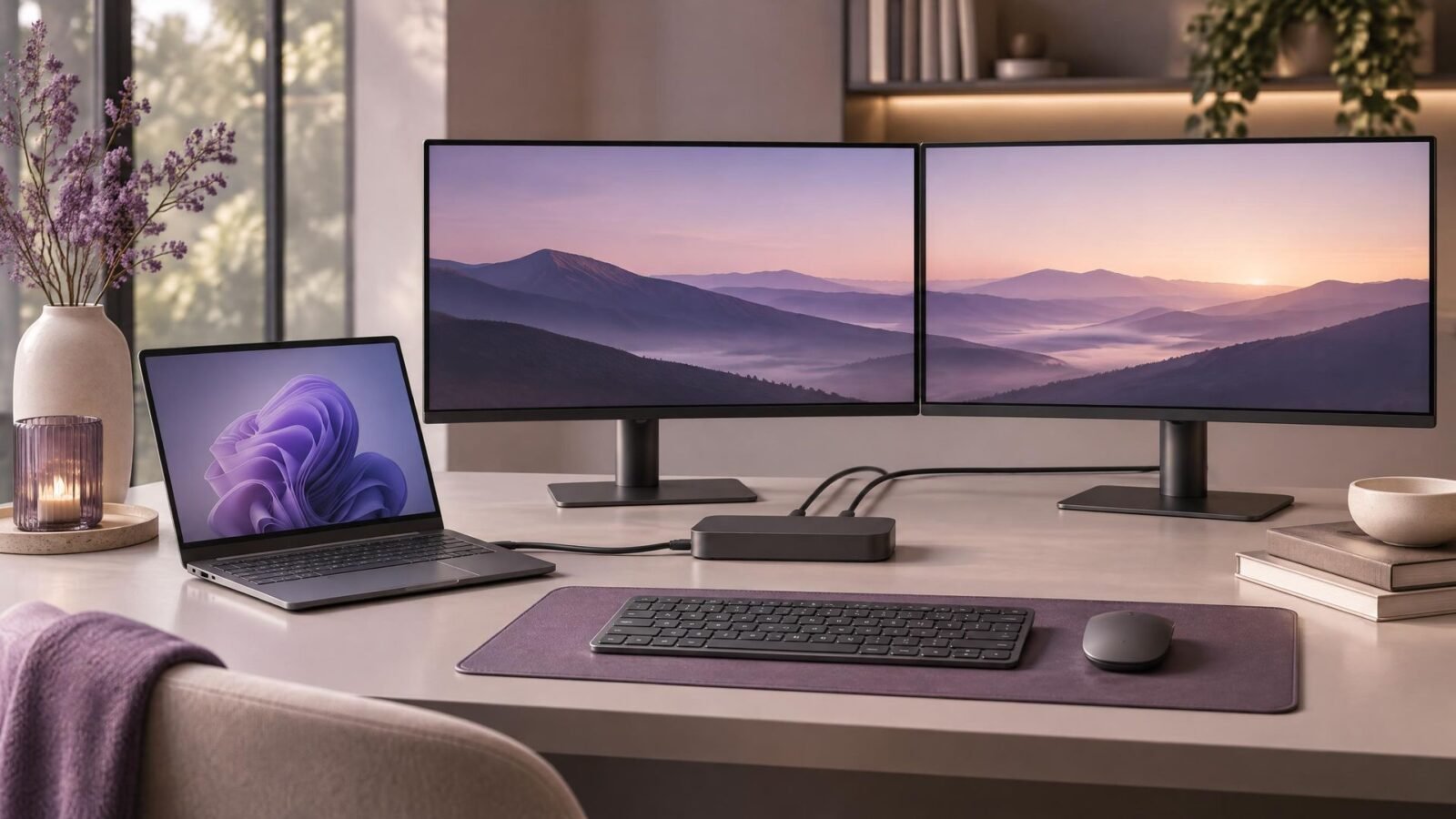
Quick answer: if your laptop’s USB-C port supports DisplayPort Alt Mode, a dual-output hub with MST can extend to two monitors. For two 4K screens at 60Hz, use a Thunderbolt or USB4 dock, or connect each monitor to its own port.
MST on Windows
Multi-Stream Transport splits one DisplayPort signal into several independent displays. Windows supports it, which is why dual-output hubs extend properly on Windows but mirror on Macs.
Bandwidth
A DisplayPort 1.4 link is shared between screens. Two 1080p displays are easy, two 1440p displays usually fine, two 4K displays may need lower refresh rates unless the dock uses Thunderbolt, USB4 or compression.
Setup steps
- Check your laptop’s USB-C or Thunderbolt port for a display icon.
- Connect the hub or dock and both monitors.
- Open Settings > System > Display, choose “Extend these displays” and arrange them.
- Set the refresh rate under Advanced display.
Mac user? Read two monitors on a MacBook. Shop docks and display cables.
Standards and sources
Frequently asked questions
Why does my second monitor show the same image?
The display mode is set to Duplicate. Press Windows + P and choose Extend.
Why is my 4K monitor at 30Hz?
The hub or cable lacks bandwidth for two 4K 60Hz streams. Use a Thunderbolt dock or separate ports.
Does every USB-C port support video?
No. Look for the DisplayPort or Thunderbolt symbol, or check the laptop specifications.
Ask the Gaatly Concierge or message our team. We reply in minutes.