










Key takeaways
- 1440p at 165 to 240Hz is the sweet spot for most PC players.
- OLED offers instant response and true blacks; IPS is bright and worry-free for static desktop use.
- Consoles top out at 4K 120Hz, so a 4K 120Hz or 144Hz screen with HDMI 2.1 suits them.
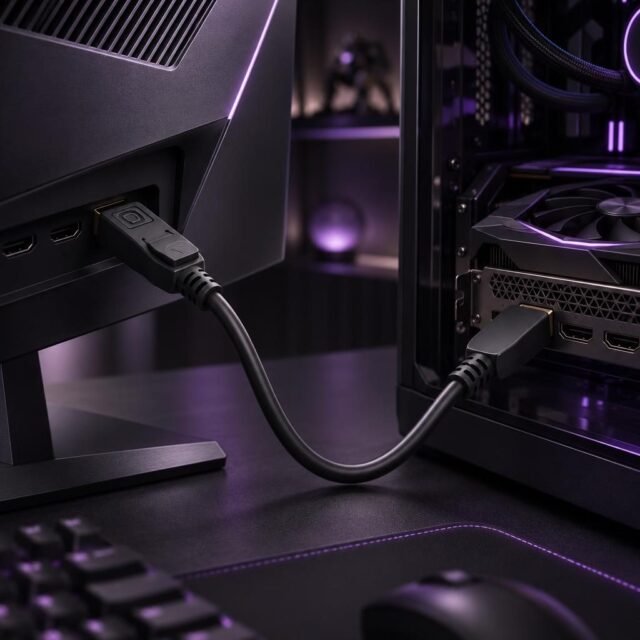
- Use DisplayPort for PCs and HDMI 2.1 for consoles, with cables rated for the bandwidth.
Quick answer: for a PC, a 27 inch 1440p monitor at 165 to 240Hz is the best balance of sharpness and speed. Choose OLED for the best contrast and motion, or IPS if you leave static windows on screen for many hours. For PS5 and Xbox, pick a 4K monitor with HDMI 2.1 and 120Hz support.
1. Refresh rate: how smooth it feels
| Refresh rate | What it suits |
|---|---|
| 60Hz | Office work and slow games; feels dated for action |
| 120 to 165Hz | A big step up; ideal for consoles and most PC games |
| 240Hz | Fast shooters and competitive play on a strong PC |
| 360Hz and above | Esports specialists with very high frame rates |
A higher refresh rate only helps if your PC or console produces matching frame rates. Variable refresh (G-Sync, FreeSync or HDMI VRR) keeps motion smooth when frame rates fluctuate.
2. Panel types
- OLED (WOLED and QD-OLED): near-instant pixel response, perfect blacks and superb HDR. Modern panels include care features; varying content and auto-hiding taskbars help avoid image retention.
- IPS: accurate colour, wide viewing angles, bright and robust for static desktop work. Contrast is lower than OLED and VA.
- VA: deep contrast at a lower price, but slower dark transitions can smear in fast games.
- Mini-LED: very bright HDR with local dimming zones; quality depends on the number of zones.
3. Size and resolution
At a normal desk distance, 24 inch suits 1080p, 27 inch suits 1440p, and 32 inch suits 4K. Ultrawide 34 inch 3440 x 1440 screens are immersive for racing, simulation and productivity. Higher resolution needs a more powerful GPU to keep frame rates high.
4. Response time and motion clarity
Ignore single “1ms” claims, which are measured in ideal conditions. Independent reviews of real grey-to-grey response and overshoot are more useful. OLED avoids the issue almost entirely.
5. HDR
Look for real brightness and local dimming, not just an HDR badge. OLED panels and Mini-LED monitors give convincing HDR; basic HDR400 LCDs often look better with HDR switched off.
6. Connections and cables
| Source | Port | Notes |
|---|---|---|
| Gaming PC | DisplayPort 1.4 (with DSC) or 2.1 | High refresh at 1440p and 4K; best G-Sync and FreeSync support |
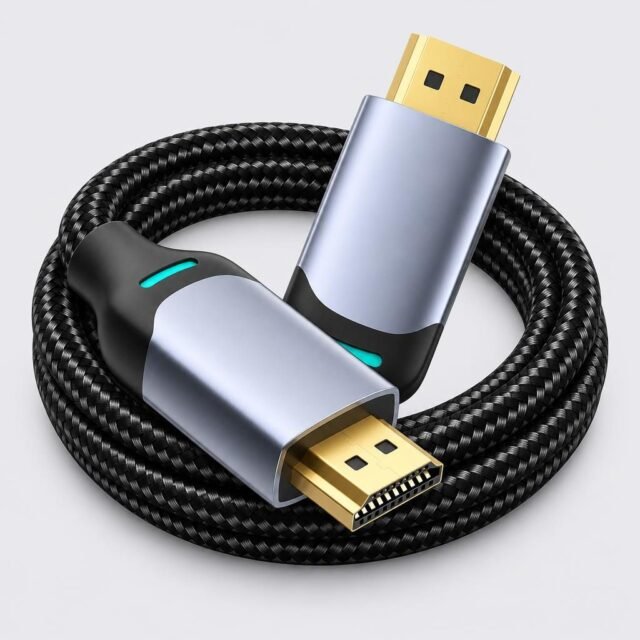
| PS5, Xbox Series X | HDMI 2.1 | 4K 120Hz and VRR |
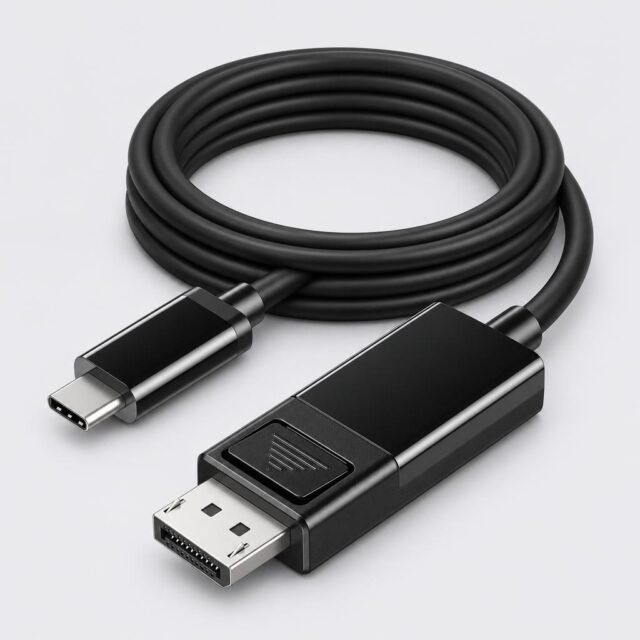
| Laptop | USB-C with DisplayPort Alt Mode, or Thunderbolt and USB4 | One cable, often with charging |
Cables matter at high refresh rates: an underspecified cable is the most common reason a monitor will not offer its top refresh rate. Keep runs short and use cables rated for the bandwidth. Our DisplayPort vs HDMI guide goes deeper.
7. A buying checklist
- Match resolution to your GPU or console.
- Pick refresh rate by the games you play.
- Choose OLED for contrast and motion, IPS for static work, Mini-LED for brightness.
- Check port versions: DisplayPort 1.4 or 2.1 for PC, HDMI 2.1 for consoles.
- Budget for a monitor arm and the right cable.
Standards and sources
Frequently asked questions
Is 1440p or 4K better for gaming?
For most PC players, 1440p at a high refresh rate is the better balance. 4K looks sharper but needs a much more powerful GPU to stay smooth. For consoles, 4K at 120Hz is ideal.
Is OLED good for gaming?
Yes. It has near-instant response and excellent contrast. Vary your content and use the built-in panel care features to minimise image retention.
Do I need a special cable for 240Hz?
You need a cable that supports the bandwidth: a quality DisplayPort cable for PC, or a 48Gbps HDMI 2.1 cable for consoles.
Ask the Gaatly Concierge or message our team. We reply in minutes.