








Key takeaways
- Use an HDMI 2.1 port on the TV and a 48Gbps Ultra High Speed cable.
- Turn on the TV's enhanced HDMI signal setting for that port, plus Game Mode.
- On PS5 set 120Hz Output and VRR to Automatic, then run the HDR adjustment.
- Choose a game's performance mode for the smoothest play on a 120Hz screen.
Quick answer: connect the PS5 to an HDMI 2.1 port on your TV with a 48Gbps cable, enable the TV’s enhanced HDMI format and Game Mode for that input, then on the console set 120 Hz Output and VRR to Automatic and run Adjust HDR. In each game, choose performance mode if you want the highest frame rate.
The PS5 is capable of 4K at up to 120 frames per second and variable refresh rate (VRR) on compatible displays. Getting there depends on four links in a chain: the TV port, the TV settings, the cable and the console settings. Miss one and the console quietly falls back to 60Hz.
1. Use the right TV port
Many TVs only offer HDMI 2.1 bandwidth on one or two of their HDMI ports. They are usually labelled 4K 120Hz, 144Hz or with a small game controller icon. If your soundbar is connected to the eARC port, check whether that port is also the 4K 120Hz one; on some TVs it is shared.
2. Turn on the TV’s enhanced HDMI signal
TV brands ship with this off for compatibility, and each names it differently:
| TV brand | Setting name (typical) |
|---|---|
| Samsung | Input Signal Plus |
| LG | HDMI Deep Colour (set to 4K) |
| Sony | HDMI signal format: Enhanced format |
| Hisense, TCL | HDMI 2.1 or Enhanced mode for the input |
Also turn on Game Mode (or Auto Low Latency Mode) so the TV skips heavy picture processing that adds input lag.
3. Use a full-bandwidth HDMI cable
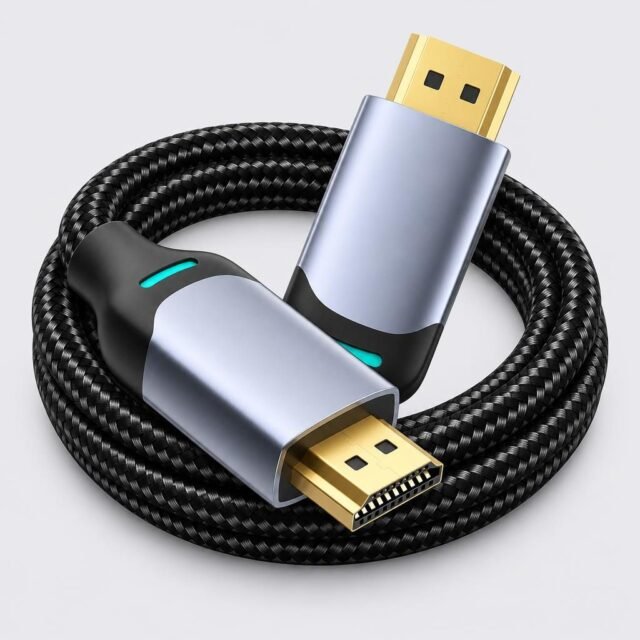
4K at 120Hz with HDR needs up to 48Gbps. The cable included with the PS5 is an Ultra High Speed cable. If you need a longer one, or your current cable came with an older device, replace it with a certified-bandwidth HDMI 2.1 cable of 2 to 3 metres. A cable that is not up to the job typically causes black screens, flickering or the console refusing 120Hz. See our HDMI 2.1 explainer.
4. PS5 video output settings
Go to Settings > Screen and Video > Video Output:
- Resolution: Automatic
- 4K Video Transfer Rate: Automatic (try -1 only if you see flicker)
- HDR: On When Supported
- VRR: Automatic, and apply to unsupported games if the result looks good on your TV
- 120 Hz Output: Automatic
- Deep Colour Output and RGB Range: Automatic
Then open Adjust HDR and follow the three screens, setting each slider until the symbol is just barely visible. This tells games the real brightness limits of your TV.
5. Game presets: performance or fidelity
Under Settings > Saved Data and Game/App Settings > Game Presets, set the default to Performance Mode or Resolution Mode. Games that support it will start in your preferred mode. On a 120Hz TV, performance modes feel dramatically smoother; on a 60Hz TV, fidelity modes may look better with little downside.
6. PS5 Pro notes
The PS5 Pro adds a more powerful GPU and PlayStation Spectral Super Resolution (PSSR) upscaling in supported games, so many titles offer higher resolution at high frame rates. The setup steps above are identical. Games with PS5 Pro enhancements may offer extra modes; try each, because the best one depends on your TV.
7. Audio
If you use a soundbar or AV receiver through eARC, set Audio Output to match your device. For headphones, 3D Audio works through the controller’s headphone jack and with supported headsets.
8. Troubleshooting
- No 120Hz option: wrong TV port, enhanced HDMI off, or cable not capable of 48Gbps.
- Flickering or dropouts: try a shorter or certified cable, then set 4K Video Transfer Rate to -1.
- Washed-out HDR: rerun Adjust HDR and check the TV’s picture mode is set to Game.
- Through an AV receiver: the receiver must also support HDMI 2.1 passthrough for 4K 120Hz.
Standards and sources
Frequently asked questions
Does the PS5 support 4K 120Hz?
Yes, in games that offer 120Hz modes, on a TV or monitor with HDMI 2.1 and a full-bandwidth cable.
Should VRR be on for PS5?
Yes if your TV supports HDMI VRR. It smooths frame rate dips and reduces tearing. Set it to Automatic.
Do I need a new HDMI cable for PS5?
The included cable is Ultra High Speed. Replace it only if you need a different length or your setup uses an older cable that cannot carry 48Gbps.
Ask the Gaatly Concierge or message our team. We reply in minutes.