






Key takeaways
- Audio quality matters more than video quality to viewers.
- A soft key light in front of you transforms even a modest webcam.
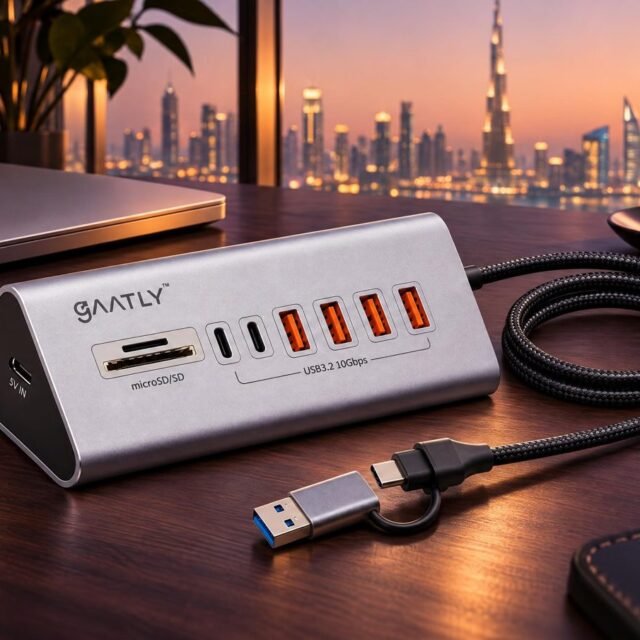
- Plug capture devices directly into the computer or a 10Gbps hub port.
- Stream over Ethernet and keep your bitrate well below your measured upload speed.
Quick answer: invest in a good microphone and a soft key light before an expensive camera, connect the computer by Ethernet, plug capture devices into high-speed ports, and set your stream bitrate comfortably below your upload speed. A clean, quiet setup looks more professional than more equipment.
1. Sound first
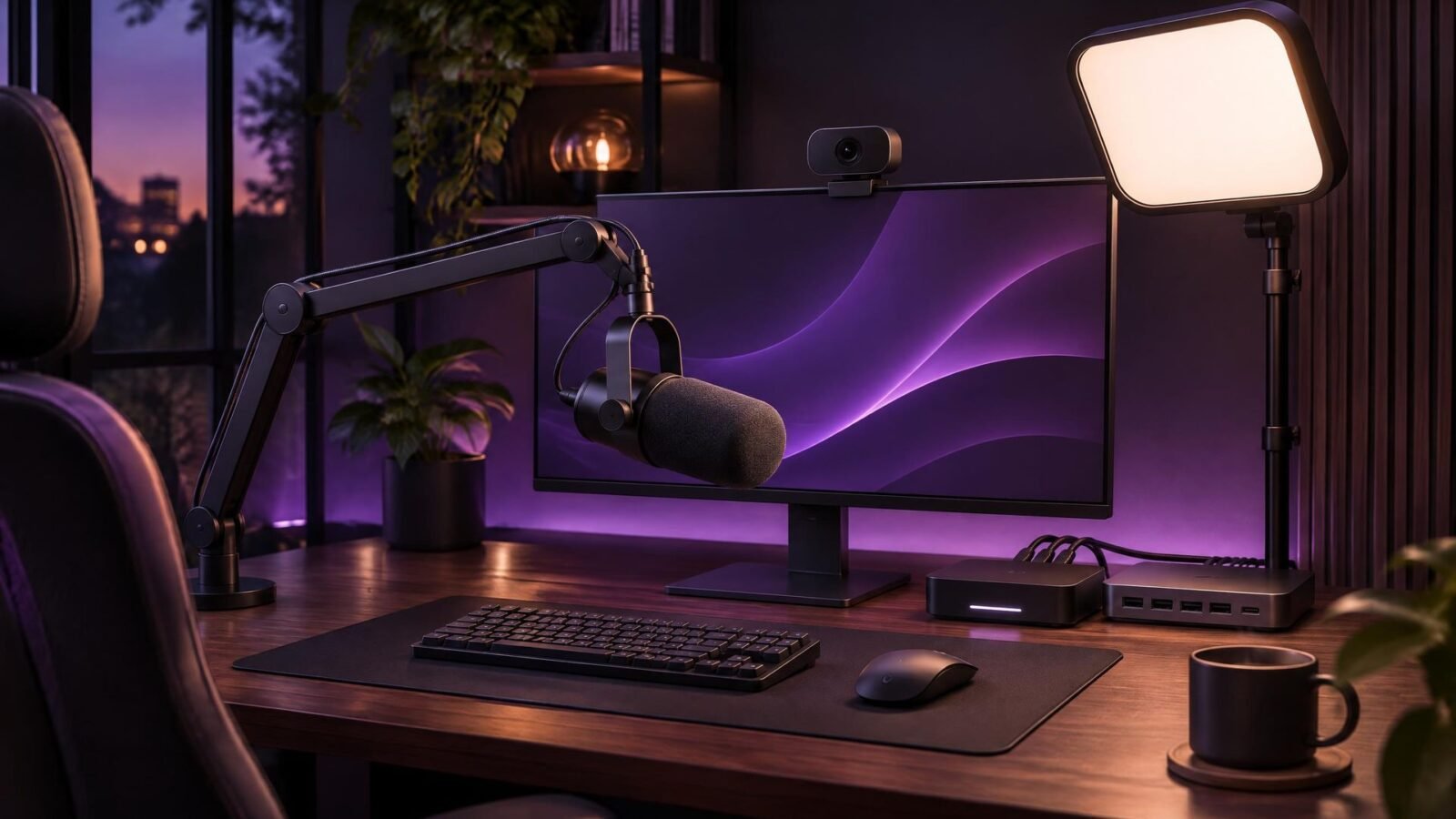
Viewers forgive soft video; they leave over bad audio. A dynamic microphone on a boom arm, a few centimetres from your mouth, rejects keyboard noise and room echo better than a sensitive condenser in an untreated room. USB microphones are simplest; XLR microphones with an audio interface offer more control and room to grow. Soft furnishings, a rug and curtains reduce echo considerably.
2. Light second
One soft key light slightly above eye level and to one side flatters any camera. Add a dim backlight or a lamp behind you for depth. Avoid a bright window behind you: the camera exposes for the window and you become a silhouette.
3. Camera third
A good 1080p webcam is enough to start. Mirrorless cameras with clean HDMI output and a capture device give the most cinematic look but need careful power and heat management for long streams.
4. Capturing consoles
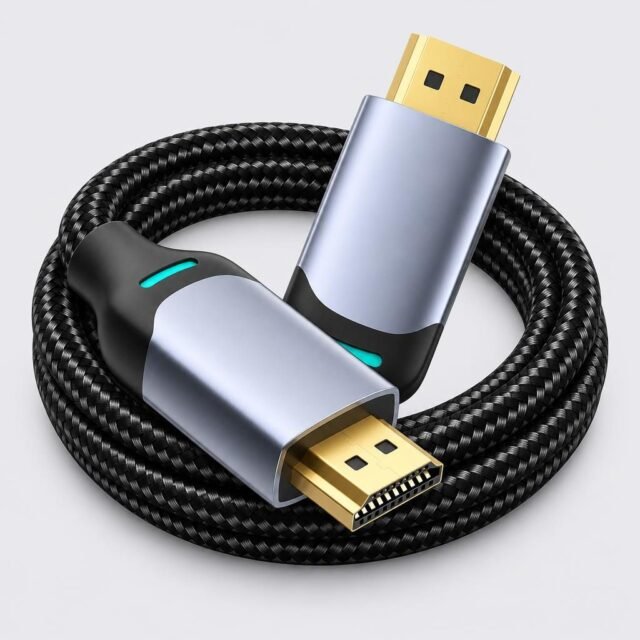
To stream PS5, Xbox or Switch gameplay through a PC, a capture device sits between the console and your display, passing the picture through while recording it. Modern USB capture devices need fast ports: connect them directly to the computer or to a 10Gbps port on a quality hub, not a shared USB 2.0 port. If the capture device supports 4K 120Hz passthrough, use HDMI 2.1 cables on both sides.
5. USB bandwidth, explained simply
Microphones, webcams, capture devices and wireless receivers all share USB bandwidth. If video stutters or audio crackles, spread devices across different ports, keep high-bandwidth devices on 10Gbps or faster ports, and use a powered hub for many accessories. Our USB speed guide explains the ratings.
6. Internet
Run a speed test and look at the upload figure. Keep your stream bitrate to roughly half of your reliable upload speed, which leaves room for game traffic and other people at home. Around 6Mbps is a common bitrate for 1080p at 60 frames per second on Twitch; YouTube accepts higher. Use Ethernet rather than Wi-Fi; see wired vs Wi-Fi.
7. Software settings that help
- Use hardware encoding (NVENC, AMF or Apple’s encoder) to keep the game running smoothly.
- Record a short test and listen back before going live.
- Add a noise gate and gentle compression to the microphone.
- Create scenes for starting, gameplay, break and ending.
8. Keep the desk calm
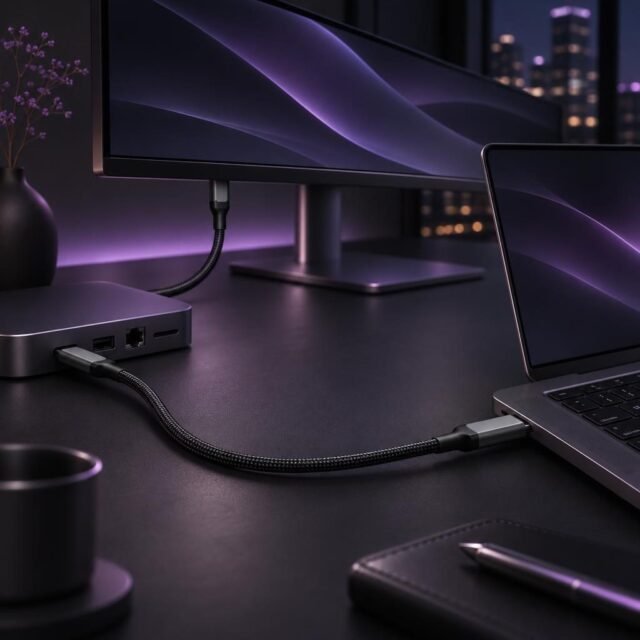
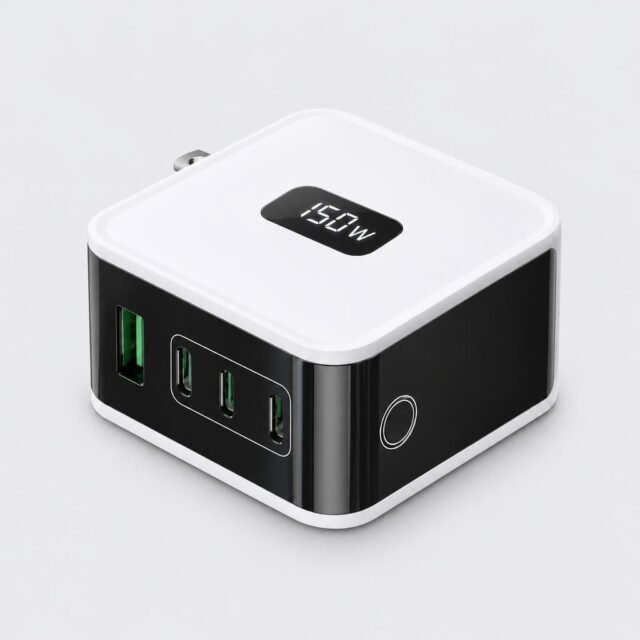
A creator desk collects cables quickly. Mount the microphone arm and lights, route every cable to one point, and use a single multi-port charger for wireless microphones, controllers and phones. Our creator desk guide covers storage and power.
Gaatly works with creators across the UAE. If you stream or make videos, see our Creator Program.
Standards and sources
Frequently asked questions
What do I need to start streaming?
A computer or console, a microphone, decent lighting, a webcam and a stable upload connection. Add a capture device to stream console gameplay through a PC.
What upload speed do I need to stream?
Aim for an upload speed at least double your stream bitrate. For 1080p at 60fps around 6Mbps is common, so 12Mbps or more of reliable upload is comfortable.
Why does my capture card stutter?
Usually USB bandwidth or the port. Connect it directly to a fast USB port on the computer and avoid sharing a hub with other high-bandwidth devices.
Ask the Gaatly Concierge or message our team. We reply in minutes.